
Have you tried setting up your computer or smartphone but received the message, " Setup incomplete due to limited connection "? This message means your device couldn't properly connect to the wireless network or the internet, preventing the setup process from completing. This can be very frustrating, especially if you want to use your device quickly and easily. Fortunately, there are simple solutions. In this article, we'll explain the possible causes of this problem and the steps you can take to fix it.
What are the causes of an incomplete configuration due to a limited connection?

Several reasons can explain why you might see the message "Setup incomplete due to limited connection" on your device. Here are the most common:
- An internet connection problem
- An update problem
- A network settings problem
- A hardware problem
How to resolve an incomplete configuration due to a limited connection?
Now that we understand the possible causes of this problem, let's move on to the solutions. Here are some steps you can follow to correct an incomplete configuration due to a limited connection on your device:
Solution 1: Check your internet connection

The first thing to do is to make sure you have a stable and reliable internet connection. To do this, you can:
- Check the wireless network status on your device and on the router or modem. If the signal is weak or nonexistent, try moving closer to the access point or changing the channel.

- Check the status of your internet service with your provider. If there are any technical problems or outages, wait until they are resolved or contact customer service for more information.
- Restart your router or modem by unplugging the power supply cable for a few seconds, then plugging it back in. This may reset the connection and resolve any issues.
- Try connecting to a different wireless network or to the internet via an Ethernet cable. This may help determine if the problem is with your wireless network or your device.
Solution 2: Update your system and applications
The second thing to do is to make sure your operating system and applications are up to date. To do this, you can:
- Check for available updates in your device settings or in the app store. If there are any pending updates, install them and restart your device if necessary.
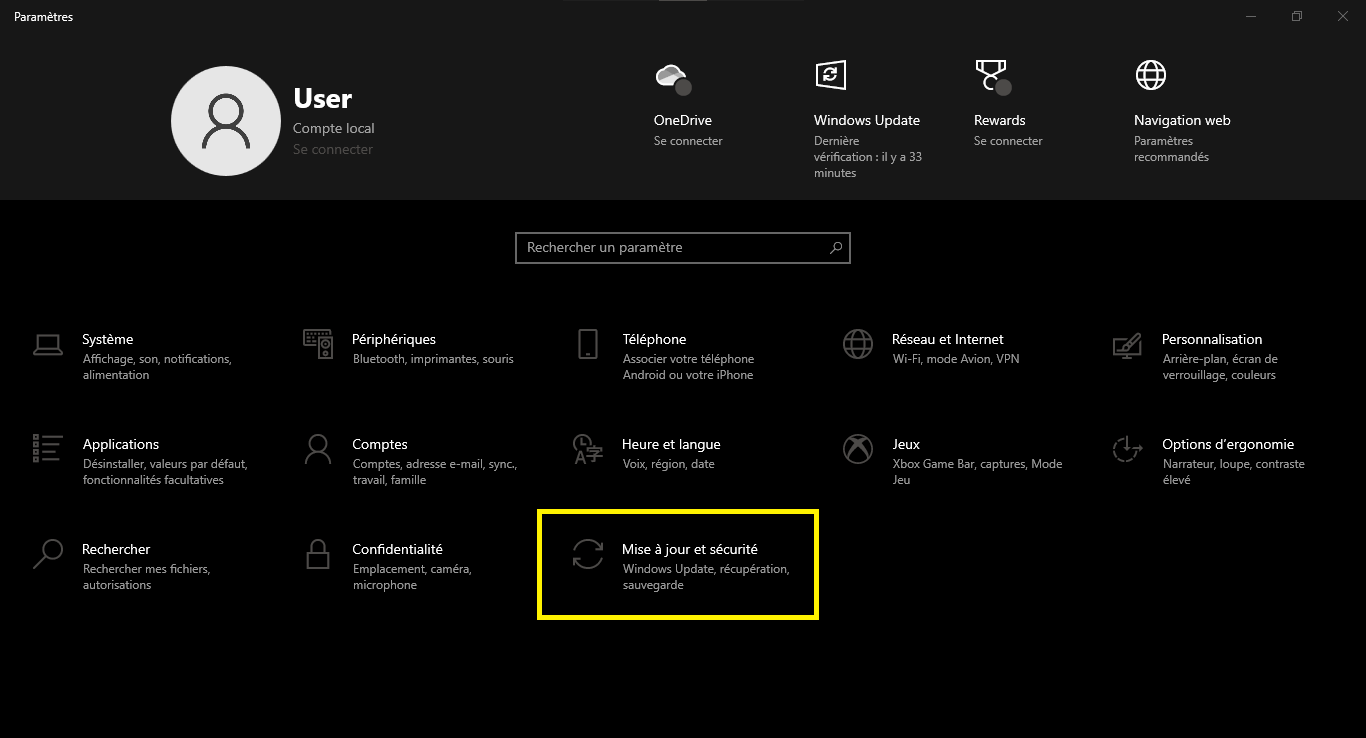
- Check that you have enough storage space on your device to perform the updates. If not, free up space by deleting unnecessary files or transferring data to an external storage device.
- Ensure you have a stable and reliable internet connection during the update process. Interrupted or limited connections can lead to incomplete configuration or errors.
Solution 3: Reset your device's network settings
The third thing to do is reset your device's network settings. This can resolve issues related to incorrect or corrupted settings, or conflicting or invalid IP addresses . To do this, you can:
- Access your device's settings and look for the option to reset network settings. Depending on your device's model and brand, this option may be located in different sections, such as: General, System, Network & Internet, Wireless & Networks, etc.

- Select the option to reset network settings and confirm your choice. This will erase all settings related to Wi-Fi, Bluetooth, and mobile data, as well as saved passwords and IP addresses.
- Restart your device and try connecting to the wireless network or the Internet again.
Solution 4: Contact customer service or the manufacturer of your device
The fourth thing to do is contact customer service or the manufacturer of your device if none of the previous solutions work. Your device may have a hardware problem that requires repair or replacement. To do this, you can:
- Find the phone number, email address, or website for your device's customer service or manufacturer. You can usually find this information on your device's box, manual, or invoice, or online by searching for your device's name and model.
- Explain the problem you are experiencing with your device and ask for help. Follow the instructions from customer service or the manufacturer to perform tests or diagnostics on your device.
- Send your device in for repair or replacement if the problem persists or if it is confirmed to be a hardware issue. Keep the tracking number or proof of shipment to track the status of your request.
FAQ
Here are some frequently asked questions from users who encounter the problem of an incomplete configuration due to a limited connection:
How can I check if my connection is limited or not?
- On Windows 10, click the network icon in the taskbar. If you see a yellow symbol with an exclamation mark, it means your connection is limited.
- On Mac OS, click the Wi-Fi icon in the menu bar. If you see a question mark, it means your connection is limited.
- On Android, open the settings and tap on Wi-Fi. If you see an X symbol under the network name, it means your connection is limited.
- On iOS, open Settings and tap Wi-Fi. If you see an alert symbol next to the network name, it means your connection is limited.
How do I change my current network connection to a limited (or unlimited) connection?
- On Windows 10, click the network icon in the taskbar. Select the network you are connected to and click Properties. Enable or disable the “Set as metered connection” option.
- On macOS, click the Wi-Fi icon in the menu bar. Select the network you're connected to and click Advanced. In the TCP/IP tab, check or uncheck the "Configure IPv6 automatically" box.
- On Android, open Settings and tap Wi-Fi. Tap and hold the network you're connected to and select Change network. Check or uncheck the "Limited network" box.
- On iOS, open Settings and tap Wi-Fi. Tap the "i" next to the network you're connected to and turn the "Low Data Usage" option on or off.
What are the advantages and disadvantages of a limited connection?
- A limited connection is one that does not allow access to certain online services or applications, such as automatic updates, video streaming, or data synchronization.
- The advantage of a limited connection is that it can reduce your device's data and battery consumption, which can be useful if you have a limited mobile plan or are in an area with poor network coverage.
- The downside of a limited connection is that it can affect the operation of certain features or applications that require a stable and full internet connection, such as wireless printers, voice assistants, or online games.
Why does my printer say “offline” or “incomplete setup due to limited connection”?
- Your printer may be offline or its configuration may be incomplete due to a limited connection if it is not properly connected to your Wi-Fi network or if your Wi-Fi network is itself limited.
- To resolve this issue, check that your printer is turned on and connected to the same Wi-Fi network as your device. If not, follow your printer manufacturer's instructions to configure it correctly.
- If your printer is connected to your Wi-Fi network but it's showing as limited, try changing your connection status to unlimited by following the steps above. If that doesn't work, contact your internet service provider to check for any issues with your connection.
Conclusion
There you have it! You now know how to resolve an incomplete setup due to a limited connection on your device. We hope this article was helpful and that you were able to configure your computer or smartphone without any problems. If you have any questions or comments, please feel free to leave them below.


